Mac mini M4 Pro: Gitea with Actions CI and modCraft in OrbStack behind Tailscale sidecars
Please feel free to raise any comments or issues on the website’s Github repository.
Pull requests are very much appreciated.

Table of Contents
Overview
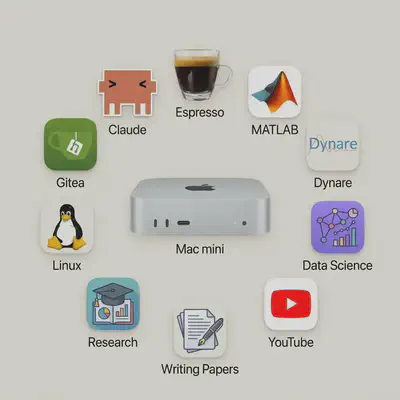
My Mac mini M4 Pro is my research workstation, and it runs two services in OrbStack, a lightweight Docker engine for macOS:
- Gitea, set up from scratch. Mostly it mirrors my repositories from GitHub and GitLab. It also hosts a few personal projects that need more room than GitHub’s or GitLab’s free plans give me, or that should run their CI on the Mac itself, with Gitea Actions. Gitea is reachable only from devices in my tailnet: a Tailscale sidecar container publishes it with Tailscale Serve, over HTTPS and for Git over SSH.
- modCraft, my web app that generates Dynare models, the
.modfile and its derivation, from a selection of model features. It runs here until it moves to a VPS of its own. It keeps its own Compose stack in its repository, and a second Tailscale sidecar publishes it on the internet with Tailscale Funnel.
No container port is published on the Mac’s LAN interface, and nothing is forwarded on the router, a FRITZ!Box in my case, which could not forward IPv4 anyway because my line is DS-Lite.
The FRITZ!Box reserves a fixed IP address for the Mac, 192.168.178.65.
Gitea’s data, including its PostgreSQL database, lives in OrbStack’s named volumes, which Time Machine does not back up, so every night a launchd job writes a consistent backup into a folder that Time Machine does back up.
healthchecks.io raises an alarm when that backup or an uptime check fails.
This is my hardware:
- Apple Mac mini M4 Pro with a 12-core CPU, 64 GB of unified memory and the 512 GB internal SSD, which holds macOS, OrbStack’s data and the backups.
- Samsung T7 Portable SSD 2 TB as the Time Machine disk.
- Ethernet cable to the FRITZ!Box. Wake for network access and the SSH unlock after a restart are most reliable on a wired connection.
- A MacBook for the SSH sessions; any computer with SSH works just as well.
I previously ran Gitea on a university server behind a SWAG reverse proxy with Let’s Encrypt certificates. This time I start with an empty instance: a script creates the mirrors again in minutes, and my personal projects get pushed from their local clones. My guide Dell Wyse 5070 Thin Client: Ubuntu Server 26.04 LTS, BTRFS and Nextcloud AIO with a Tailscale sidecar uses the same sidecar pattern for Nextcloud. The compose file, the configuration and the scripts are in the Apple-Mac-mini-M4-Pro folder of my scripts repository, next to the shared Tailscale folder with the serve configurations. The scripts README lists every file and its purpose. Every command works in fish, my login shell, as well as in zsh and bash.
I wrote this guide for macOS 27, OrbStack 2.2.5, Gitea 28.4.0, the Gitea runner 6.0.0, PostgreSQL 18 and Tailscale 1.104.7. Two changes make older guides and forum posts misleading:
- Gitea dropped the
1.from its version numbers after 1.27.3: 28.0.0 is what would have been 1.28. The Docker tags1-rootlessand1.27-rootlessstay frozen at 1.27.3. Gitea 28 also removed[server] DOMAIN; the domain is now simply the host ofROOT_URL. - act_runner is now called the Gitea runner: binary
gitea-runner, imagedocker.gitea.com/runner, Homebrew formulagitea-runner. The Docker Hub imagegitea/act_runnerstopped at 0.6.1. Configuration keys andGITEA_*variables kept their names.
1 The intended layout
| Component | Location / decision |
|---|---|
| macOS | FileVault on; after a restart I unlock the disk over SSH and log in through Screen Sharing (section 2.2). OrbStack and the launchd jobs run in my logged-in session |
| Scripts repository | Cloned to ~/scripts, not under ~/Documents: macOS keeps launchd jobs out of ~/Documents, ~/Desktop and ~/Downloads. The compose file and .env are in Apple-Mac-mini-M4-Pro/, the serve configurations in Tailscale/ |
| Docker engine | OrbStack, started at login. Named volumes live in its disk image, which Time Machine excludes |
| Gitea | gitea (rootless image 28.4.0) with gitea-db (PostgreSQL 18); volumes gitea-data (repositories, LFS, attachments, packages, Actions logs, SSH host keys), gitea-config (app.ini) and gitea-db-data |
| CI | gitea-runner registered for my user only. Its jobs run in containers on the network gitea-ci, without a Docker socket. Optional: a runner directly on macOS (section 8.4) |
| Tailnet access to Gitea | https://gitea.tailnet-name.ts.net (443) and git@gitea.tailnet-name.ts.net (SSH on 22) → sidecar gitea-tailscale, tag tag:gitea, tailnet only |
| modCraft | Its own stack in ~/modCraft/website, Caddy on 127.0.0.1:8080 only. Public through Funnel: https://modcraft.tailnet-name.ts.net → sidecar modcraft-tailscale (tag tag:container) → host.docker.internal:8080 |
| Backups | Daily at 02:30: pg_dump plus gitea dump into ~/Backups/gitea, which Time Machine copies to the T7. modCraft exports its statistics daily at 03:30 |
| Monitoring | healthchecks.io: the backup and a five-minute uptime check through the tailnet |
| Tailnet nodes | The Mac itself, mac-mini (Tailscale app, my user); the nodes gitea (tag:gitea) and modcraft (tag:container) of the sidecar containers gitea-tailscale and modcraft-tailscale |
| Listening on the LAN | SSH and Screen Sharing of macOS. No container port |
tailnet-name.ts.net stands for the DNS name of your tailnet throughout this guide (section 4).
Each sidecar is a node of its own with its own name and certificate, so Gitea and modCraft keep their addresses no matter what happens to the Mac’s own Tailscale client.
Gitea does not share its sidecar’s network namespace: the sidecar reaches it over a Docker network, so only the ports in the serve configuration answer on the tailnet.
2 Prepare macOS for unattended operation
2.1 Energy settings
The Mac must never sleep, and it should start again after a power failure.
In System Settings → Energy, switch on Prevent automatic sleeping when the display is off, Wake for network access and Start up automatically after a power failure, and switch off Enable Power Nap.
Depending on the model, Start up automatically after a power failure is called Start up when power is connected: After power failure.
On the command line, pmset changes the same settings:
sudo pmset -a sleep 0 disksleep 0 womp 1 autorestart 1 powernap 0
pmset -g custom
In the output, sleep, disksleep and powernap must show 0, womp and autorestart 1.
The display may still turn off; that does not matter.
2.2 FileVault, restarts and remote access
FileVault stays on: the Mac’s SSD holds the Gitea backups, SSH keys and access tokens. The price is that macOS cannot log in automatically while FileVault is on, and none of my services runs before somebody logs in. OrbStack in particular is an ordinary app that starts at login; it cannot run as a system service. So after every restart, whether a power failure, a crash or a macOS update, two things have to happen before Gitea and modCraft are back:
- Unlock the disk over SSH.
Since macOS 26 Tahoe, a Mac with Apple silicon accepts an SSH connection at the FileVault screen when Remote Login is on, and unlocks the disk with an account’s password; see Apple’s Managing FileVault in macOS and
man 7 apple_ssh_and_filevault. This is the macOS counterpart of the SSH unlock in the initrd of my Wyse. - Log in through Screen Sharing. The unlock does not log anybody in; the Mac goes on to the login window. OrbStack, the Tailscale app and the launchd jobs start only with a real login.
Turn on System Settings → General → Sharing → Remote Login and Screen Sharing. Note the details of the unlock phase:
- Password only.
The keys in
~/.ssh/authorized_keysand the system’s host keys are still encrypted, so the pre-boot SSH server presents a host key of its own and accepts only the password of an account that can unlock FileVault (sudo fdesetup list). - LAN only.
The Mac’s own Tailscale app is not running yet, so the Mac is reachable only on
192.168.178.65. From outside I hop through the Wyse, which is at home and on my tailnet. - Ethernet. The unlock over Wi-Fi works only from macOS 26.5 on, and Ethernet is the safer bet anyway.
On the MacBook, four host aliases in ~/.ssh/config cover this.
dell-wyse is the Wyse’s tailnet name (section 8.2 of its guide); at home, the hop through it costs nothing:
Host dell-wyse
    HostName dell-wyse
    User wmutschl
    IdentityFile ~/.ssh/id_ed25519
    IdentitiesOnly yes

Host mac-mini
    HostName mac-mini
    User wmutschl
    IdentityFile ~/.ssh/id_ed25519
    IdentitiesOnly yes

Host mac-mini-lan
    HostName 192.168.178.65
    User wmutschl
    ProxyJump dell-wyse
    IdentityFile ~/.ssh/id_ed25519
    IdentitiesOnly yes

# FileVault unlock after a restart: its own host key, password only
Host mac-mini-unlock
    HostName 192.168.178.65
    User wmutschl
    ProxyJump dell-wyse
    HostKeyAlias mac-mini-unlock
    PubkeyAuthentication no
Copy your key to the Mac once.
At the first connection, compare the host key’s fingerprint with the one that ssh-keygen -lf /etc/ssh/ssh_host_ed25519_key.pub prints on the Mac mini itself:
ssh-copy-id mac-mini-lan
ssh mac-mini-lan
If you turn off password logins for the normal SSH server in /etc/ssh/sshd_config.d/, the unlock still accepts the password: the pre-boot SSH server does not read the configuration on the encrypted volume (man 7 apple_ssh_and_filevault).
Test it once before you rely on it.
After a restart, unlock, wait a minute, then open Screen Sharing through an SSH tunnel and log in at the login window:
ssh mac-mini-unlock
# asks for the macOS password of wmutschl, unlocks the disk and drops the connection

ssh -N -L 5901:localhost:5900 mac-mini-lan &
open vnc://localhost:5901
The first unlock asks you to accept the pre-boot host key, which differs from the normal one; HostKeyAlias keeps the two apart in known_hosts.
The tunnel uses local port 5901, because macOS’s Screen Sharing refuses to connect to port 5900 of the computer it runs on.
At home, open vnc://192.168.178.65 does the same without a tunnel.
After the login, lock the screen, and run kill %1 in the MacBook’s terminal to close the tunnel.
sudo fdesetup authrestart restarts without the FileVault unlock, but the Mac still waits at the login window afterwards.
Updates of macOS sometimes log the user back in by themselves; otherwise the Screen Sharing login above is all it takes.
The uptime check in section 10.1 tells you when the Mac is waiting for one of the two steps.2.3 Tailscale on the Mac and the scripts repository
The Mac itself is in my tailnet as mac-mini, through the standalone Tailscale app and with Use Tailscale DNS settings on.
The sidecars do not need it, as they are tailnet nodes of their own.
But the uptime check, the optional macOS runner and SSH from outside go through it.
Three things matter for a server:
- In the Tailscale admin console, open the Mac’s machine, choose Edit machine name, and set it to
mac-miniwith Auto-generate from OS hostname unticked, unless it already has that name. The SSH aliases above use that name. In the same menu, choose Disable key expiry. Otherwise the Mac’s key expires after 180 days and the Mac silently drops out of the tailnet; tagged nodes like the sidecars never expire. - Run Tailscale 1.104.6 or later on the Mac: it fixes MagicDNS resolver selection during network changes.
- Do not use an exit node on this Mac: its routes break OrbStack’s networks.
Install Homebrew if it is not there yet, and clone the scripts repository to ~/scripts:
git clone https://github.com/wmutschl/scripts.git ~/scripts
~/scripts is not a privacy-protected folder, so the launchd jobs in section 10.2 may run scripts from it.
Under ~/Documents they would be blocked silently.
3 OrbStack
Install Rosetta 2 first, which OrbStack uses to run linux/amd64 images.
Without it, a later start of OrbStack over SSH hangs, because the Rosetta prompt cannot appear there.
Then install OrbStack and start it once:
sudo softwareupdate --install-rosetta --agree-to-license
brew install --cask orbstack
open -a OrbStack
Go through OrbStack’s welcome screens: choose Docker, and allow the admin privileges it asks for, so it can link /var/run/docker.sock and the docker command.
Answer Allow when macOS asks whether OrbStack may find devices on the local network.
Without that permission, containers cannot reach host.docker.internal, which modCraft’s sidecar needs.
In OrbStack’s settings:
- Start at login: on.
- Keep running when app is quit: on.
- Pause containers while Mac is sleeping: off. The Mac never sleeps, but this keeps the services running if it ever does.
- Automatically download updates: off. An update restarts OrbStack’s VM, and with it every container, and in a reported case a stack stayed down afterwards (#2481). I update by hand in a quiet moment (section 10.6).
- Memory limit: OrbStack lets its VM use up to a quarter of the RAM by default, 16 GiB here. I raise it to 24 GiB for CI jobs; it is a limit, not a reservation, and unused memory goes back to macOS.
Under System Settings → General → Login Items & Extensions, allow OrbStack to run in the background. Set the memory limit, and check that OrbStack keeps its data out of Time Machine:
orb config set memory_mib 24576
orb config get data_allow_backup
# false
data_allow_backup false means that OrbStack’s disk image, and with it every named volume, stays out of Time Machine.
Leave it like that: a copy of one huge, constantly changing image file is no backup, and restores of it are reported to fail.
The application-level backup in section 10 is the backup.
Docker’s default log driver in OrbStack is json-file without rotation, and the logs live inside the same disk image.
Switch the default to the local driver, which rotates by itself, as on the Wyse.
Add this key to ~/.orbstack/config/docker.json, next to any keys that are already there:
{
  "log-driver": "local"
}
Then restart OrbStack as a whole, which also applies the memory limit, and check the driver:
nano ~/.orbstack/config/docker.json
orb stop && orb start
docker info --format '{{.LoggingDriver}}'
# local
Only containers created afterwards use it; the stacks in this guide are all created later.
mac-mini-alive, section 10.1) runs orb start when it finds OrbStack stopped, and reports it; section 10.6 shows how to keep it from doing that during maintenance.
If OrbStack keeps failing to start, the reported workaround is orb config set network_bridge false, followed by orb stop && orb start.
It costs the direct access from macOS to container IPs and *.orb.local names, which nothing here needs, but host.docker.internal can then stall, and modCraft’s sidecar relies on it.4 Tailscale: tags, OAuth client and node names
Gitea’s sidecar gets a tag of its own, tag:gitea, without the Funnel attribute.
Tailscale then refuses to publish Gitea on the internet, even if a serve configuration asked for it.
modCraft’s sidecar uses tag:container, which has the Funnel attribute and which modCraft’s earlier sidecar on this Mac already carried.
Tagged nodes have no key expiry.
See Tailscale in Docker for more on the sidecar pattern, and its parameters for the environment variables that the compose file uses.
DNS: in the admin console, note the DNS name of your tailnet,
tailnet-name.ts.netin this guide, and check that MagicDNS and HTTPS Certificates are enabled. Without HTTPS certificates, the sidecar skips its whole serve configuration, including the SSH forward. The certificates are public in the Certificate Transparency logs, so the namesgitea.tailnet-name.ts.netandmodcraft.tailnet-name.ts.netbecome public, although only modCraft answers from the internet.Access controls: add the tags and the Funnel attribute next to any existing entries that other machines depend on:
"tagOwners": {
  "tag:container": ["autogroup:admin"],
  "tag:gitea":     ["autogroup:admin"],
},
"nodeAttrs": [
  {"target": ["tag:container"], "attr": ["funnel"]},
],
Optional, narrower access: with the default allow-all policy, every device in the tailnet reaches every port of both sidecars, and the sidecars themselves reach every device. Gitea’s login and modCraft’s password still protect them. These grants allow only HTTPS and SSH to Gitea, and only HTTPS to modCraft:
"grants": [
  {"src": ["autogroup:member"], "dst": ["tag:gitea"],     "ip": ["tcp:443", "tcp:22"]},
  {"src": ["autogroup:member"], "dst": ["tag:container"], "ip": ["tcp:443"]},
],
As on the Wyse, they narrow anything only once the broad default rule that allows
*to reach*:*is replaced by explicit rules for the rest of the tailnet. Funnel traffic is not governed by grants. Keep in mind that containers in OrbStack reach the tailnet through the Mac’s own Tailscale app, under my user’s identity: a CI job or modCraft’s Caddy reaches whatever my user may reach.OAuth client (under Settings → Trust credentials): create a client for the Mac mini with only the scope Auth Keys with write access, and the two tags
tag:giteaandtag:container. If device approval is enabled, append&preauthorized=trueto bothTS_AUTHKEYlines in the compose file; see OAuth clients. Store the secret in your password manager. The sidecars use it only for their first login:TS_AUTH_ONCE=truekeeps them from minting a new key at every restart.
Node names. Each sidecar’s MagicDNS name is also its certificate’s name and, for Gitea, part of every clone URL.
If a node with the same name already exists in the admin console, even offline, Tailscale gives the new node a suffixed name such as gitea-1, and the suffix stays even if the other node is renamed later.
That earlier modcraft node is still listed, offline:
- If OrbStack on the Mac still has the volume
modcraft-tailscale-data(docker volume ls), the new sidecar continues as that same node, and nothing needs to be done. - If not, delete the old
modcraftmachine in the admin console before the sidecar first starts. The same applies togiteaif an old node of that name exists.
5 Configure the deployment
On the Mac mini, create .env from the template and generate Gitea’s secrets.
Generate them without docker run -t, so they end without a carriage return:
cd ~/scripts/Apple-Mac-mini-M4-Pro
git pull
cp mac-mini.env .env
chmod 600 .env

docker run --rm docker.gitea.com/gitea:28.4.0-rootless gitea generate secret SECRET_KEY
docker run --rm docker.gitea.com/gitea:28.4.0-rootless gitea generate secret INTERNAL_TOKEN
openssl rand -hex 24
nano .env
Fill in:
TAILSCALE_OAUTH_KEY: the OAuth secret from section 4.GITEA_TAILSCALE_HOSTNAMEandMODCRAFT_TAILSCALE_HOSTNAME: the node names the sidecars ask for,giteaandmodcraft; keep them unless those names are taken (section 4).GITEA_DOMAIN:gitea.followed by your tailnet’s DNS name. It becomes Gitea’sROOT_URLand the host of every clone URL, so it must match the sidecar’s actual MagicDNS name (section 6.1).GITEA_DB_PASSWORD: the output ofopenssl rand -hex 24.GITEA_SECRET_KEYandGITEA_INTERNAL_TOKEN: the two generated secrets.SECRET_KEYencrypts Gitea’s 2FA seeds, Actions secrets and the credentials of pending migrations; it must never change afterwards.- Leave
GITEA_RUNNER_REGISTRATION_TOKENempty for now (section 8.1). MODCRAFT_SERVE_CONFIG=modcraft-funnel.jsonpublishes modCraft through Funnel; section 9.5 covers the tailnet-only alternative.
Copy all secrets into your password manager.
Git ignores .env.
Review the compose file, the runner’s configuration and the serve configuration (press q to quit less):
less docker-compose.yml
less gitea-runner.yaml
less ../Tailscale/gitea-serve.json
What they configure:
- Sidecars: both run Tailscale in userspace mode without extra privileges, log in with the OAuth secret only while they have no state (
TS_AUTH_ONCE=true) and upload no client logs (TS_NO_LOGS_NO_SUPPORT=true). They load their serve configuration from the repository’sTailscale/folder, with${TS_CERT_DOMAIN}replaced by the node’s own name, and re-apply it when it changes. Whether OrbStack passes edits made on macOS on to the container is undocumented, so restart the sidecar after editing a serve file (docker compose restart gitea-tailscale). - Gitea’s serve configuration: 443 terminates HTTPS with the tailnet certificate and proxies to
http://gitea:3000; 22 is forwarded to Gitea’s built-in SSH server ongitea:2222. There is noAllowFunnel, andtag:gitealacks the Funnel attribute anyway. - Gitea: the rootless image writes every
GITEA__section__KEYvariable into/etc/gitea/app.iniat every start, overriding manual edits to those keys.INSTALL_LOCKskips the web installer, which is whySECRET_KEYmust come from.env: without it, Gitea silently falls back to a public built-in key. Registration is closed, and nothing is visible without signing in. New repositories are private by default. Gitea restarts withrestart: always, so it comes back when OrbStack starts, even after a backup was cut off while Gitea was stopped. - Gitea’s networks: the network
giteaconnects Gitea with its sidecar,gitea-ciwith the runner and its jobs, andgitea-dbwith PostgreSQL; the networkgitea-dbis internal, without a route out. Gitea trustsX-Forwarded-Forfrom all of them, as only the sidecar, the runner and its jobs can reach port 3000. - Mirrors and Actions: new mirrors get no Actions unit (
DEFAULT_MIRROR_REPO_UNITS, Gitea’s default, set explicitly), and Gitea reads workflows from.gitea/workflowsonly, never from.github/workflows(section 7.5). - PostgreSQL 18: pinned to the major version, as a new major needs a dump and restore.
From 18 on, the volume goes to
/var/lib/postgresql, and PostgreSQL keeps its data in18/dockerbelow it; a mount at/var/lib/postgresql/data, as for 17 and older, makes the container refuse to start. - Runner: registers once against
http://gitea:3000, the address its jobs then use as well (section 8). - Pinned versions: Gitea, the runner and PostgreSQL are pinned; the sidecars follow Tailscale’s
latest, which is the current stable release. - Project name:
mac-mini. Volumes and networks have fixed names, so the stack keeps them across a renamed folder.
Validate the compose file and pull the images:
docker compose config --quiet
docker compose pull
Always run compose from ~/scripts/Apple-Mac-mini-M4-Pro, so that .env and ../Tailscale resolve.
6 Gitea
6.1 Start Gitea and its sidecar
Start PostgreSQL, Gitea and Gitea’s sidecar; --wait returns once the health checks pass:
docker compose up -d --wait gitea-db gitea gitea-tailscale
docker compose ps --format '{{.Name}}  {{.Status}}'
# gitea  Up 20 seconds (healthy)
# gitea-db  Up 26 seconds (healthy)
# gitea-tailscale  Up 26 seconds
docker exec gitea-tailscale tailscale status
docker exec gitea-tailscale tailscale serve status
# https://gitea.tailnet-name.ts.net (tailnet only)
# |-- / proxy http://gitea:3000
serve status also lists the TCP forward of port 22 to gitea:2222.
In the admin console, check that the new machine is called exactly gitea and carries tag:gitea.
If it became gitea-1, delete the old gitea machine, rename the new one to gitea with Edit machine name (Machine names), and restart the sidecar so that its serve configuration picks up the name: docker compose restart gitea-tailscale.
Alternatively, set GITEA_DOMAIN to the name it got and run docker compose up -d gitea, so that Gitea picks up the new ROOT_URL.
The first HTTPS request makes the sidecar fetch its certificate, which takes a few seconds; then Gitea’s sign-in page appears at https://gitea.tailnet-name.ts.net in a browser on any of your tailnet devices.
Check the health endpoint from the Mac as well:
curl -fsS https://gitea.tailnet-name.ts.net/api/healthz
It prints "status": "pass" with a database and a cache check.
6.2 Admin account and two-factor authentication
Registration is closed, so create the admin account on the command line.
docker exec runs as the image’s user git, as Gitea requires, and needs no --config:
docker exec gitea gitea admin user create --admin --username wmutschl --email you@example.org --random-password
# generated random password is '...'
# New user 'wmutschl' has been successfully created!
Sign in with that password and set your own under Settings → Account. Under Settings → Security, enable two-factor authentication (TOTP or a passkey) and store the recovery codes in your password manager. Under Settings → SSH / GPG Keys, add the public SSH key of every computer you push from.
6.3 Git over SSH and HTTPS
Gitea’s built-in SSH server generated RSA, ECDSA and Ed25519 host keys at its first start. On the Mac mini, print their fingerprints:
docker exec gitea sh -c 'for k in /var/lib/gitea/ssh/*.pub; do ssh-keygen -lf "$k"; done'
On the MacBook, compare them with the keys that gitea.tailnet-name.ts.net presents, before you trust it for the first time, and connect once:
ssh-keyscan gitea.tailnet-name.ts.net 2>/dev/null | ssh-keygen -lf -
ssh -T git@gitea.tailnet-name.ts.net
The fingerprints must match, and the last command greets you by your Gitea user name and closes the connection, as Gitea offers no shell.
The host keys live on the data volume and come back with every restore, so clients never see a changed host key.
Clone URLs look like git@gitea.tailnet-name.ts.net:wmutschl/project.git.
Over HTTPS, use an access token from Settings → Applications instead of the password; macOS’s keychain stores it for git.
Neither Tailscale Serve nor Gitea limits the size of a push over either protocol.
7 Mirrors of GitHub and GitLab
A pull mirror is a read-only copy that Gitea fetches every eight hours by default.
I keep the mirrors in two organizations, github and gitlab, apart from my own projects.
That avoids name collisions between the two sources, and the CI runner, registered for my user only, never sees a mirror.
7.1 Tokens
The token you give Gitea for a mirror is stored with that mirror, in plain text in the git configuration of its repository inside Gitea, and therefore in every backup. Use read-only tokens for the sources:
- GitHub: a fine-grained personal access token with Repository access: All repositories and the permission Contents: Read-only; GitHub adds Metadata: Read-only by itself. A fine-grained token covers the repositories of exactly one owner, so organizations need tokens of their own. Use a token even for public repositories, because GitHub throttles anonymous clones.
- GitLab: a personal access token with the scopes
read_apiandread_repository. On gitlab.com, tokens expire after at most 365 days.
The script itself needs a Gitea token of your own user with the scopes write:repository, read:user and read:organization.
Create it in Settings → Applications, or on the command line; --scopes defaults to everything, so always set it:
docker exec gitea gitea admin user generate-access-token --username wmutschl --token-name gitea-mirror --scopes write:repository,read:user,read:organization --raw
7.2 Create the organizations
In Gitea, create the organizations github and gitlab (+ → New Organization) with the visibility Private.
Mirrors of private repositories stay private in Gitea; the script sets that for every mirror, because Gitea does not copy the visibility from the source.
7.3 Mirror everything with gitea-mirror
gitea-mirror lists all repositories of a GitHub user or organization, or of a GitLab user or group, and creates a pull mirror in Gitea for each one that does not exist there yet.
Running it again later only adds what is new.
By default it skips forks and leaves out wikis and Git LFS objects.
Every repository is cloned once during its creation, so the first run takes a while.
Run it on the Mac, where it reads Gitea’s address from .env, or on any other tailnet device after export GITEA_URL=https://gitea.tailnet-name.ts.net.
Read the tokens without echoing them, so they stay out of the shell history:
cd ~/scripts/Apple-Mac-mini-M4-Pro
read -s GITEA_TOKEN && export GITEA_TOKEN
read -s GITHUB_TOKEN && export GITHUB_TOKEN
./gitea-mirror --dry-run github wmutschl
# fork, skipped:     tidyexplain
# would mirror:      https://github.com/wmutschl/timeshift-autosnap-apt.git -> github/timeshift-autosnap-apt (private: false, wiki: false, lfs: false)
# ...
./gitea-mirror github wmutschl
# mirroring:         https://github.com/wmutschl/timeshift-autosnap-apt.git -> github/timeshift-autosnap-apt ...
#   done
# ...

read -s GITLAB_TOKEN && export GITLAB_TOKEN
./gitea-mirror gitlab wmutschl
The options:
--to OWNER: another Gitea user or organization for the mirrors.--include-forks,--skip-archived: forks are left out and archived repositories included by default.--wiki: also mirror wikis that exist upstream. A wiki that disappears upstream later makes every sync of that mirror fail, which is why this is off by default.--lfs: also mirror Git LFS objects. Every sync then downloads new LFS objects, which counts against the owner’s LFS bandwidth on GitHub.--interval DUR: the sync interval as a Go duration, such as8hor30m, at least10m; units like1ddo not exist.0stops the periodic syncs after the first one.--match REGEX: only repositories whose name matches.- For a self-managed GitLab, run
export GITLAB_URL=https://gitlab.example.orgfirst.
A migration that fails leaves a repository stuck as “migration failed” in Gitea; the script deletes it right away, so the next run tries again.
7.4 A single mirror in the web interface
For a single repository, use + → New Migration, choose GitHub, GitLab or plain Git, paste the clone URL, and tick This repository will be a mirror.
For GitHub and GitLab, the token goes into Access Token; for plain Git, enter any user name, such as oauth2, and the token as password.
Pick the owner github or gitlab, and tick Private for a private source.
7.5 How the mirrors behave
- Syncs: the first sync after the creation comes within ten minutes, whatever the interval says; after that, the interval counts. Synchronize Now in the repository’s settings fetches immediately. Every sync fetches all branches and tags and deletes those that disappeared upstream, so a mirror does not protect against deletions upstream.
- Failures: a mirror whose token expired or whose source disappeared is retried every ten minutes, and every failure lands in Site Administration → System Notices. Look there now and then.
- Rotating a token: in the mirror’s Settings → Mirror Settings, enter the new token as the password (username
oauth2). After a rename upstream, change the address there and enter the token again: since Gitea 28.4, a changed address erases the stored credentials. - Changes upstream that Gitea does not follow: a new default branch and a newly created wiki.
- Archived upstream: Gitea cannot archive a mirror.
Set its interval to
0to stop the syncs, or turn it into a normal repository with Convert to Regular Repository, which also deletes the stored token. - Never Actions on a mirror.
A mirror sync counts as a push, and a mirror with Actions enabled would run the mirrored project’s workflows on my Mac, with access to my user’s Actions secrets.
Three things prevent that: new mirrors get no Actions unit, Gitea reads only
.gitea/workflows, and the runner serves only repositories of my user. So leave Actions unticked in the settings of every mirror.
7.6 Personal projects
My own projects live directly under my user and are private by default.
Git LFS is enabled, without a file size limit.
Uploads through the web interface are limited to 50 MB per file, issue attachments to 100 MB and release assets to 2048 MB; raise them in the compose file if needed, for example GITEA__repository_0x2E_upload__FILE_MAX_SIZE: 500.
_0x2E_ stands for the dot in the section name [repository.upload].
To keep a copy on GitHub as well, add a push mirror in the repository’s Settings → Mirror Settings: your GitHub user name as username, a GitHub token that may write to that one repository as password, and Sync when commits are pushed ticked. Create the GitHub repository first, and keep in mind what a push mirror does: it force-pushes all branches and tags and deletes on GitHub whatever does not exist in Gitea. Delete a push mirror in the web interface: in Gitea 28.4, deleting one through the API leaves its token behind in the repository’s git configuration.
8 Gitea Actions on the Mac mini
The runner in the container takes jobs only from repositories of my user.
For each job it starts a container from one of Gitea’s runner images on the network gitea-ci, where the job reaches Gitea at http://gitea:3000 and the runner’s cache server at gitea-runner:8088.
The images are multi-arch, so jobs run natively as linux/arm64.
Checkout, artifacts and the cache do not depend on Tailscale.
The runner downloads the actions from github.com and the job images from docker.gitea.com.
8.1 Register the container runner
Create a registration token for your user, put it into .env and start the runner:
cd ~/scripts/Apple-Mac-mini-M4-Pro
docker exec gitea gitea actions generate-runner-token --scope wmutschl
nano .env    # GITEA_RUNNER_REGISTRATION_TOKEN=...
docker compose up -d gitea-runner
docker logs gitea-runner
# .runner is missing or not a regular file
# level=info msg="Registering runner, arch=arm64, os=linux, version=v6.0.0."
# level=info msg="Runner registered successfully."
# ... level=info msg="runner: mac-mini-docker, with version: v6.0.0, with labels: [ubuntu-latest ubuntu-26.04 ubuntu-24.04 ubuntu-22.04], declare successfully"
The runner now appears as online in Gitea under Settings → Actions → Runners.
Its credentials are in /data/.runner on the volume gitea-runner-data, so the token is no longer needed.
Empty GITEA_RUNNER_REGISTRATION_TOKEN in .env and recreate the container without it.
Then click Reset registration token on the same page, because a token registers any number of runners until it is reset:
nano .env    # GITEA_RUNNER_REGISTRATION_TOKEN=
docker compose up -d gitea-runner
8.2 A first workflow
Workflows go into .gitea/workflows/ of a repository; Actions is enabled for new repositories.
A minimal one:
# .gitea/workflows/ci.yml
name: ci
on: [push, pull_request]
jobs:
  test:
    runs-on: ubuntu-latest
    steps:
      - uses: actions/checkout@v4
      - uses: actions/cache@v4
        with:
          path: ~/.cache/pip
          key: pip-${{ hashFiles('requirements.txt') }}
      - run: make test
runs-on picks the image through the runner’s labels in gitea-runner.yaml: ubuntu-latest (currently Ubuntu 26.04), ubuntu-26.04, ubuntu-24.04 and ubuntu-22.04, each with Node.js 24, Python 3, git, git-lfs and the Docker CLI.
The runner pulls the image again before each job, so ubuntu-latest stays current.
A job that needs linux/amd64, for example for x86-only binaries, runs under Rosetta with a container option:
  test-amd64:
    runs-on: ubuntu-latest
    container:
      image: docker.gitea.com/runner-images:ubuntu-24.04
      options: --platform linux/amd64
The runner sets ACT=true in every job, so steps guarded with if: ${{ !env.ACT }} are skipped.
Jobs stop after three hours, the limit of both the runner’s timeout and Gitea’s [actions] ENDLESS_TASK_TIMEOUT; raise both for longer jobs.
8.3 What jobs can and cannot do
- No Docker socket:
docker_host: "-"keeps OrbStack’s Docker socket out of every job and action container. With the runner’s default, every job could start privileged containers, read every volume, including the sidecars’ Tailscale keys and Gitea’s database, and reach the Mac’s files. A workflow that builds Docker images needs a second runner from the runner image’s-dind-rootlessvariant, with a label of its own; I have no such workflow. - No host mounts and no privileges:
valid_volumes: []andprivileged: false; the runner also drops dangerous options from workflows, such as--privilegedor--cap-add. - Limits: each job container gets at most 8 GiB of memory and 4096 processes, so that a runaway job cannot starve Gitea, PostgreSQL and modCraft in OrbStack’s VM.
The limits do not cover
services:containers ordocker://steps, and a workflow’s own--memoryoption overrides them. - Network: jobs reach Gitea’s port 3000 and the internet, but not PostgreSQL.
Through OrbStack they also reach the Mac’s LAN, services bound to the Mac’s
127.0.0.1viahost.docker.internal, such as modCraft’s Caddy, and every tailnet device my user may reach. This runner is for my own code only. - Two jobs at a time:
capacity: 2. Jobs share the networkgitea-ci, so two concurrent jobs that both start a service container of the same name would collide; setcapacity: 1if your workflows useservices:.
Changes to gitea-runner.yaml take effect with docker compose up -d --force-recreate gitea-runner.
8.4 Optional: a runner directly on macOS
Some jobs need macOS itself, for example MATLAB with my license or Xcode.
For those, a second runner runs directly on the Mac, from Homebrew, with the label macos-arm64.
Its jobs run as my user, with access to all my files and my keychain, so it registers for my user’s repositories only, like the container runner.
It reaches Gitea through the Mac’s Tailscale app, under https://gitea.tailnet-name.ts.net.
The plist assumes the user wmutschl and Homebrew in /opt/homebrew; adapt it before you load it:
brew install gitea-runner node
mkdir -p ~/.config/gitea-runner
cp ~/scripts/Apple-Mac-mini-M4-Pro/gitea-runner-host.yaml ~/.config/gitea-runner/config.yaml
cd ~/.config/gitea-runner
docker exec gitea gitea actions generate-runner-token --scope wmutschl
read -s TOKEN    # paste the token printed above; it is not shown
gitea-runner register --no-interactive --config config.yaml --instance https://gitea.tailnet-name.ts.net --name mac-mini-host --token "$TOKEN"
cp ~/scripts/Apple-Mac-mini-M4-Pro/Library/LaunchAgents/local.mac-mini-gitea-runner.plist ~/Library/LaunchAgents/
launchctl bootstrap gui/$(id -u) ~/Library/LaunchAgents/local.mac-mini-gitea-runner.plist
tail ~/Library/Logs/mac-mini-gitea-runner.log
Reset the registration token in Gitea afterwards, as in section 8.1.
A workflow selects this runner with runs-on: macos-arm64.
The label is deliberately not macos-latest, so workflows written for GitHub never land on the bare Mac by accident.
I start it with my own launchd job instead of brew services, whose job stays down after a failed start, for example when the tailnet certificate is not ready yet after a reboot.
Three more things to know:
- macOS’s Local Network privacy applies to launchd agents such as this one: its CI jobs cannot reach addresses on the LAN, while loopback and tailnet addresses work.
- Like OrbStack, it runs only while I am logged in, and it needs
nodefrom Homebrew andgitfrom Apple’s Command Line Tools on itsPATH, which the launchd job sets. - Its cache is off in
gitea-runner-host.yaml, because the cache server would listen on all of the Mac’s interfaces; turn it on if macOS jobs useactions/cache.
9 modCraft
modCraft keeps its own Compose stack in its repository, with Caddy for the shared-password authentication, an API and a generation worker.
Caddy publishes 127.0.0.1:8080 only.
Here, only the Tailscale sidecar lives in the scripts repository: it is the “existing HTTPS reverse proxy” from modCraft’s website/deployment/README.md, with Tailscale Serve as the proxy.
The sidecar reaches Caddy through OrbStack’s host.docker.internal, which leads to the Mac’s loopback interface, so neither stack refers to the other, and each can be rebuilt and updated on its own.
If modCraft is down, its URL answers with a 502.
9.1 Clone and configure modCraft
modCraft’s launchd jobs expect the repository in ~/modCraft, which is not a privacy-protected folder either.
My repository is private for now:
git clone git@github.com:wmutschl/modCraft.git ~/modCraft
cd ~/modCraft/website
Create modCraft’s private .env next to its compose.yaml as described in its deployment/README.md: MODCRAFT_USERNAME and the bcrypt hash MODCRAFT_PASSWORD_HASH, in single quotes because the hash contains $.
Keep the plaintext password in .env.credentials.local (MODCRAFT_USERNAME and MODCRAFT_LOCAL_PASSWORD, chmod 600); Git ignores both files.
Serve keeps the original Host header, and Caddy answers only for the host names in MODCRAFT_SITE_ADDRESS.
So that variable must contain the sidecar’s MagicDNS name, as plain http://…:8080, because HTTPS ends at the sidecar.
The line in modCraft’s .env:
MODCRAFT_SITE_ADDRESS='http://modcraft.tailnet-name.ts.net:8080, http://localhost:8080'
The localhost entry keeps http://localhost:8080 working on the Mac itself.
9.2 Build and start modCraft and its sidecar
The first build pulls TeX and compiles the Dynare preprocessor, so it takes a while:
cd ~/modCraft/website
docker compose up --build -d
docker compose ps

cd ~/scripts/Apple-Mac-mini-M4-Pro
docker compose up -d modcraft-tailscale
docker exec modcraft-tailscale tailscale funnel status
# # Funnel on:
# #     - https://modcraft.tailnet-name.ts.net
#
# https://modcraft.tailnet-name.ts.net (Funnel on)
# |-- / proxy http://host.docker.internal:8080
Check the machine name modcraft and the tag tag:container in the admin console, as for Gitea.
Public DNS for the Funnel name can take up to ten minutes.
Test the public route from a device outside the tailnet, for example a phone on mobile data with Tailscale off: devices in the tailnet resolve the name to the sidecar’s tailnet address and bypass Funnel.
The legal notice and privacy policy at /privacy and the content-hashed built files under /assets/ are public; everything else asks for the shared password.
9.3 Smoke test, statistics backup and model check
The smoke test submits a small model through the tailnet and checks authentication, worker health, all downloads and the PDF and ZIP output:
cd ~/modCraft/website
python3 deployment/smoke_test.py --credentials .env.credentials.local --url https://modcraft.tailnet-name.ts.net
modCraft brings two launchd jobs of its own; install both as described in its deployment/README.md:
local.modcraft-statistics-backupexports the statistics log, with model features and outcomes but no titles, authors, IP addresses or job IDs, daily at 03:30 to~/modCraft/website/backups/statistics.jsonl, which Time Machine backs up.local.modcraft-model-checkruns daily at 04:00 and re-runs, in Octave with Dynare, every model requested since its last run, and reports failures as a macOS notification.
Before deploying a change to the model files or the generator, run the release gate from the same README, which runs a fixed suite of feature combinations in Octave with Dynare.
9.4 Updates
Wait until no modCraft job is queued or running, then pull and rebuild.
--force-recreate also starts every container’s log afresh, which modCraft’s privacy policy counts on; down is not needed and the volumes stay:
cd ~/modCraft && git pull && cd website && docker compose up --build --force-recreate -d
docker compose -f ~/modCraft/website/compose.yaml logs --tail=100 api worker web
docker logs modcraft-tailscale
Changing the shared password means a new hash in modCraft’s .env, an updated .env.credentials.local and docker compose up -d web in ~/modCraft/website; modCraft’s deployment/README.md has the command for the hash.
modCraft’s privacy policy also relies on TS_NO_LOGS_NO_SUPPORT=true, so check it after recreating the sidecar:
docker logs modcraft-tailscale 2>&1 | grep 'disabled logging'
9.5 Serve instead of Funnel
To make modCraft reachable only from the tailnet, set MODCRAFT_SERVE_CONFIG=modcraft-serve.json in .env and recreate the sidecar; that file is modcraft-funnel.json without AllowFunnel.
Also empty MODCRAFT_CHECK_FUNNEL in ~/.config/mac-mini/host.env (section 10.1), as there is no public route left to check:
cd ~/scripts/Apple-Mac-mini-M4-Pro
docker compose up -d modcraft-tailscale
docker exec modcraft-tailscale tailscale serve status
# https://modcraft.tailnet-name.ts.net (tailnet only)
# |-- / proxy http://host.docker.internal:8080
Removing a serve file alone does not end Funnel: Tailscale stores the last configuration in the sidecar’s state.
Point the sidecar at a file without AllowFunnel, as above.
To take modCraft off the air at once, docker exec modcraft-tailscale tailscale funnel reset clears the sidecar’s whole serve configuration, the tailnet route included.
The sidecar’s next start applies the file named in MODCRAFT_SERVE_CONFIG again, with Funnel if that is still modcraft-funnel.json.
9.6 Moving modCraft to its VPS later
On the VPS, modCraft runs with its compose.production.yaml, and Caddy gets its own Let’s Encrypt certificate for a real domain; its README covers that.
Carry over the private .env (with the new MODCRAFT_SITE_ADDRESS), the credentials file and the statistics, restored from the latest statistics.jsonl.
Then, on the Mac:
cd ~/modCraft/website && docker compose down
cd ~/scripts/Apple-Mac-mini-M4-Pro && docker compose rm -sf modcraft-tailscale
docker volume rm modcraft-tailscale-data
launchctl bootout gui/$(id -u)/local.modcraft-statistics-backup
rm ~/Library/LaunchAgents/local.modcraft-statistics-backup.plist
Delete the modcraft machine in the Tailscale admin console, empty MODCRAFT_CHECK_URL in ~/.config/mac-mini/host.env, and remove the modcraft-tailscale service and its volume from the compose file.
docker compose down keeps modCraft’s volumes; remove them only once the VPS has everything.
The daily model check skips silently once modcraft-api-1 is gone.
To keep it, add --export with the path of a statistics.jsonl fetched from the VPS before 04:00 to the ProgramArguments of local.modcraft-model-check.plist, and keep the image modcraft-backend:local in step with the VPS by running git pull && docker compose build in ~/modCraft/website after each deployment, because the checker builds on it.
Otherwise remove that job the same way as the statistics backup.
10 Backups, monitoring and ongoing care
10.1 healthchecks.io and the host’s settings
The host’s jobs read their settings from ~/.config/mac-mini/host.env: the healthchecks.io ping key, the backup folder, the number of backups to keep, and how the uptime check reaches modCraft.
In healthchecks.io, copy the ping key from Project Settings → API Access, and add the integrations that should alert you, such as email or Signal, as for the Wyse.
The checks are created by their first ping, as mac-mini-gitea-backup and mac-mini-alive.
Create the settings file from its template:
mkdir -p ~/.config/mac-mini
cp ~/scripts/Apple-Mac-mini-M4-Pro/host.env.example ~/.config/mac-mini/host.env
chmod 600 ~/.config/mac-mini/host.env
nano ~/.config/mac-mini/host.env
Set MODCRAFT_CHECK_URL=https://modcraft.tailnet-name.ts.net/privacy, the legal notice, which needs no password.
On the Mac, MagicDNS resolves modCraft’s name to the sidecar’s tailnet address, so a plain request would never touch Funnel.
MODCRAFT_CHECK_FUNNEL=true therefore resolves the name through public DNS, with Cloudflare’s DNS over HTTPS, and the check takes the public route; empty it with the tailnet-only modcraft-serve.json.
| Job | When | What | healthchecks.io check |
|---|---|---|---|
| Gitea backup | Daily, 02:30 | pg_dump and gitea dump → ~/Backups/gitea; Gitea stops for the dump | mac-mini-gitea-backup: period 1 day, grace 1 hour |
| Uptime | Every five minutes | Gitea’s /api/healthz through the tailnet, modCraft’s /privacy through Funnel, OrbStack running | mac-mini-alive: period 5 minutes, grace 10 minutes |
| modCraft statistics | Daily, 03:30 | modCraft’s own job → ~/modCraft/website/backups | None; its log is ~/Library/Logs/modcraft-statistics-backup.log |
| Time Machine | Hourly | The home folder, including ~/Backups/gitea and ~/scripts, to the T7 | macOS warns after days without a backup |
The uptime check goes down when the Mac is off or waits for its FileVault unlock or login (section 2.2), and when the Mac’s Tailscale app, OrbStack, a sidecar, Gitea, PostgreSQL, modCraft’s Caddy or Funnel fails. Its failure message names what failed. While the backup holds Gitea stopped, the check skips Gitea.
10.2 Install the launchd jobs
The plists contain the absolute paths /Users/wmutschl/...; adapt them first if your user name differs.
Copy the two plists into place, load them, and run the backup once:
cp ~/scripts/Apple-Mac-mini-M4-Pro/Library/LaunchAgents/local.mac-mini-gitea-backup.plist ~/Library/LaunchAgents/
cp ~/scripts/Apple-Mac-mini-M4-Pro/Library/LaunchAgents/local.mac-mini-alive.plist ~/Library/LaunchAgents/
launchctl bootstrap gui/$(id -u) ~/Library/LaunchAgents/local.mac-mini-gitea-backup.plist
launchctl bootstrap gui/$(id -u) ~/Library/LaunchAgents/local.mac-mini-alive.plist
launchctl kickstart gui/$(id -u)/local.mac-mini-gitea-backup
tail -f ~/Library/Logs/mac-mini-gitea-backup.log
# 2026-11-20 10:27:34 stopping gitea
# 2026-11-20 10:27:34 pg_dump
# 2026-11-20 10:27:34 gitea dump
# 2026-11-20 10:27:34 starting gitea
# 2026-11-20 10:27:37 backup complete: /Users/wmutschl/Backups/gitea/gitea-20261120-102734 (584K)
Press Ctrl-C once the log says backup complete.
The run creates its check in healthchecks.io; set the periods from the table above there.
Check that Time Machine includes the folder:
tmutil isexcluded ~/Backups/gitea
# [Included]  /Users/wmutschl/Backups/gitea
macOS announces the new jobs as background items under System Settings → General → Login Items & Extensions; leave them allowed. A daily job missed while the Mac slept runs when it wakes up; one missed while it was off does not, and the missing ping reports that. Finally, test the alert path once and check that the alert reached you; the next uptime run, within five minutes, sets the check back to up:
~/scripts/Apple-Mac-mini-M4-Pro/mac-mini-hc-ping alive fail 'Test alert from the Mac mini'
10.3 What the backup contains
mac-mini-gitea-backup stops Gitea while it dumps, because Gitea’s documentation requires that for a consistent copy; that takes seconds for a small instance and longer with large repositories.
PostgreSQL keeps running.
A Gitea that is running but not healthy, for example while it migrates its database after an update, is not stopped; the run fails instead.
The dump runs with the image the gitea container was created from, so a changed image tag in the compose file cannot affect it.
Each run writes a folder gitea-YYYYMMDD-HHMMSS with two files:
gitea-db.pgdump: the database as apg_dumpin PostgreSQL’s custom format.gitea-dump.tar: Gitea’s owngitea dump, with the repositories, LFS objects, attachments, packages, Actions logs and artifacts, the SSH host keys,app.iniand the database once more, as SQL. It is uncompressed: Git’s objects are compressed already, and that keeps Gitea’s downtime short.
Then Gitea starts again, also after an error, if it was running before, and the run waits until Gitea answers again before it reports success. The script keeps the two newest runs. Time Machine keeps the older ones, hourly for a day, daily for a month and weekly after that, as space allows. Neither file contains the search indexes, which Gitea rebuilds, or the sessions, so everyone signs in again after a restore.
app.ini contains SECRET_KEY and the database password, the repositories’ git configuration contains the mirror tokens in plain text, and the database holds the hashed passwords and the encrypted 2FA seeds.
~/Backups/gitea is readable only for my user, and the Time Machine disk must be encrypted: choose Encrypt Backup when you select the disk in System Settings → General → Time Machine.Both copies are at home, on the Mac and on the T7.
A fire or theft would take both; an off-site copy of ~/Backups/gitea, for example on the Wyse’s Storage Box, would close that gap, but is not part of this guide.
The mirrors, by contrast, come back from GitHub and GitLab at any time.
10.4 Restore drills
A backup counts only once a restore from it has worked.
mac-mini-gitea-restore restores a run into a fresh installation: it loads the database with pg_restore, unpacks the archive into Gitea’s two volumes, starts Gitea and runs gitea admin regenerate hooks and gitea doctor check --all.
It refuses to touch a database with tables or volumes with data, so it cannot overwrite a running instance.
It also refuses a .env whose GITEA_SECRET_KEY differs from the one in the backup’s app.ini, because Gitea could not decrypt the 2FA seeds and Actions secrets with another key.
I tested it by deleting all three volumes and restoring: repositories, mirrors, attachments, packages, LFS objects, access tokens, the SSH host keys and the runner’s registration all came back, and CI jobs ran again once the runner was started.
For a drill, restore onto another Mac with OrbStack, my MacBook, because the volume names are fixed and the Mac mini’s volumes are in use.
The drill instance must not sync mirrors: it would fetch with the stored tokens, and its push mirrors would force-push the backup’s older state to GitHub.
A docker-compose.override.yml next to the compose file, which compose reads by itself, turns mirroring off:
services:
  gitea:
    environment:
      GITEA__mirror__ENABLED: "false"
.env needs the Mac mini’s GITEA_SECRET_KEY from the password manager; the other values may differ, and TAILSCALE_OAUTH_KEY stays empty, as the drill starts no sidecar.
The backup goes into the drill’s folder, so that removing the drill removes it too:
git clone https://github.com/wmutschl/scripts.git ~/scripts-drill
cd ~/scripts-drill/Apple-Mac-mini-M4-Pro
scp -r mac-mini:Backups/gitea/gitea-YYYYMMDD-HHMMSS .
cp mac-mini.env .env
chmod 600 .env
nano .env                         # GITEA_SECRET_KEY from the password manager; any GITEA_DOMAIN, GITEA_DB_PASSWORD, GITEA_INTERNAL_TOKEN
nano docker-compose.override.yml  # the override above
./mac-mini-gitea-restore gitea-YYYYMMDD-HHMMSS
docker exec gitea curl -fsS http://localhost:3000/api/healthz
docker exec gitea ls /var/lib/gitea/git/repositories
SECRET_KEY is also in the archive’s app.ini, if the password manager ever fails: tar -xOf gitea-dump.tar app.ini | grep SECRET_KEY.
Afterwards, remove the drill on the MacBook, and only there:
cd ~/scripts-drill/Apple-Mac-mini-M4-Pro
docker compose down -v
cd ~ && rm -rf ~/scripts-drill
If the MacBook’s Time Machine ran in between, its disk holds a copy of the backup as well, so it must be encrypted too.
To restore on the Mac mini itself after a broken database, remove the three Gitea containers and volumes, restore the newest backup and start the runner again.
After a lost disk, first set up the Mac again and get ~/Backups/gitea back from Time Machine:
cd ~/scripts/Apple-Mac-mini-M4-Pro
docker compose stop gitea-runner gitea gitea-db && docker compose rm -f gitea-runner gitea gitea-db
docker volume rm gitea-db-data gitea-data gitea-config
./mac-mini-gitea-restore ~/Backups/gitea/gitea-YYYYMMDD-HHMMSS
docker compose up -d gitea-runner
The runner reconnects without a new registration if its volume gitea-runner-data survived; otherwise register it again (section 8.1) and delete the old, offline runner in Gitea.
With push mirrors, the restored Gitea force-pushes the backup’s state at its next sync.
If GitHub has commits that the backup lacks, put the drill’s override in place before the restore, push those commits to Gitea from a local clone, then delete the override and run docker compose up -d gitea.
| When | Drill | Passing result |
|---|---|---|
| Quarterly | Restore the newest backup on the MacBook (above) | Gitea is healthy and lists every repository |
| Quarterly | Look at the System Notices in Gitea’s site administration | No mirror keeps failing |
| Yearly | Unlock the Mac over SSH and log in through Screen Sharing, from outside home (section 2.2) | Everything comes back, and the uptime check turns green |
| Yearly | Go through the recovery material below | Every secret is there and works |
10.5 Recovery material
Most of the configuration is in the scripts repository, under Apple-Mac-mini-M4-Pro/ and Tailscale/.
Keep the rest in your password manager:
- The values in
~/scripts/Apple-Mac-mini-M4-Pro/.env: the OAuth secret,GITEA_SECRET_KEY,GITEA_INTERNAL_TOKENand the database password. - Gitea: the admin password and its 2FA recovery codes, and the access tokens you use.
- GitHub’s and GitLab’s read-only tokens for the mirrors, with their expiry dates.
- The healthchecks.io ping key from
~/.config/mac-mini/host.env. - modCraft’s
.envand.env.credentials.local. - The Mac’s FileVault recovery key, and your Tailscale policy file.
The sidecars’ state volumes need no backup: a rebuilt sidecar registers again with the OAuth secret, under the same name if the old node was deleted first.
10.6 Updates
macOS: install updates in a quiet moment; the restart needs the unlock and the login from section 2.2.
OrbStack:
orb update --check, then update in the app, or withbrew upgrade --greedy orbstack, since a plainbrew upgradeskips apps that update themselves. It restarts every container. Before you quit OrbStack for maintenance, runtouch ~/.config/mac-mini/maintenance, so that the uptime check does not start it again; the check still reports OrbStack as down. Remove the file afterwards.Gitea: read the release notes, especially for a new major version. Run the backup first, in the foreground and before you touch the image tag: newer images can migrate the database, and there is no way back.
cd ~/scripts/Apple-Mac-mini-M4-Pro
./mac-mini-gitea-backup
# ... backup complete: /Users/wmutschl/Backups/gitea/gitea-YYYYMMDD-HHMMSS (...)
Continue only if it ends with
backup complete. Then change the image tag indocker-compose.ymland run:docker compose pull gitea docker compose up -d gitea docker logs -f giteaGitea’s web interface tells administrators when a new version is out.
PostgreSQL:
docker compose pull gitea-db && docker compose up -d gitea-dbbrings new minor versions of 18. A new major version needs the database moved with a dump and a restore. Gitea’s container is removed, not only stopped, so that an OrbStack restart in between cannot start it against the new, empty database:cd ~/scripts/Apple-Mac-mini-M4-Pro ./mac-mini-gitea-backup docker compose stop gitea-runner docker compose rm -sf gitea gitea-db docker volume rm gitea-db-data nano docker-compose.yml # the new major version for gitea-db docker compose up -d --wait gitea-db docker compose exec -T gitea-db pg_restore -U gitea -d gitea --no-owner --exit-on-error < ~/Backups/gitea/gitea-YYYYMMDD-HHMMSS/gitea-db.pgdump docker compose up -d gitea gitea-runnerGitea runner: read the release notes before a new major version, as each of them broke something in 2026; then change the tag and run
docker compose up -d gitea-runner. The job images update by themselves. The optional macOS runner updates withbrew upgrade gitea-runner, followed bylaunchctl kickstart -k gui/$(id -u)/local.mac-mini-gitea-runner.Tailscale sidecars:
docker compose pull gitea-tailscale modcraft-tailscale && docker compose up -d gitea-tailscale modcraft-tailscale. The Tailscale app on the Mac updates itself.Scripts repository: after
git pullin~/scripts, carry new settings frommac-mini.envandhost.env.exampleinto.envand~/.config/mac-mini/host.envfirst, then rundocker compose up -din~/scripts/Apple-Mac-mini-M4-Pro, so that the containers pick up changes to the compose file or.env. If the pull changes Gitea’s image tag, run the backup before that, as in the Gitea item above; a new major version of PostgreSQL needs the dump and restore from the PostgreSQL item first. After a change to a serve file inTailscale/, restart only its sidecar:docker compose restart gitea-tailscaleforgitea-serve.json, ordocker compose restart modcraft-tailscalefor the file named inMODCRAFT_SERVE_CONFIG; thenextcloud-*.jsonfiles are not used here. A changedgitea-runner.yamlneedsdocker compose up -d --force-recreate gitea-runner. Copy changed plists again, followed bylaunchctl bootoutandlaunchctl bootstrap. The scripts README lists what each kind of change needs.
10.7 Regular checks
healthchecks.io reports failed and missed jobs by itself. Look at these now and then anyway, especially after updates:
cd ~/scripts/Apple-Mac-mini-M4-Pro
docker compose ps
docker exec gitea-tailscale tailscale serve status
docker exec modcraft-tailscale tailscale funnel status
docker system df
ls -l ~/Backups/gitea
tail -n 5 ~/Library/Logs/mac-mini-gitea-backup.log ~/Library/Logs/mac-mini-alive.log
launchctl list | grep local.
In Gitea’s Site Administration, glance at System Notices for failing mirrors and at Actions → Runners for runners that went offline.